
01Any device.
Any device.
Any combination.
Bluetooth headphones, wired headsets, USB speakers, HDMI TVs and soundbars, all together.
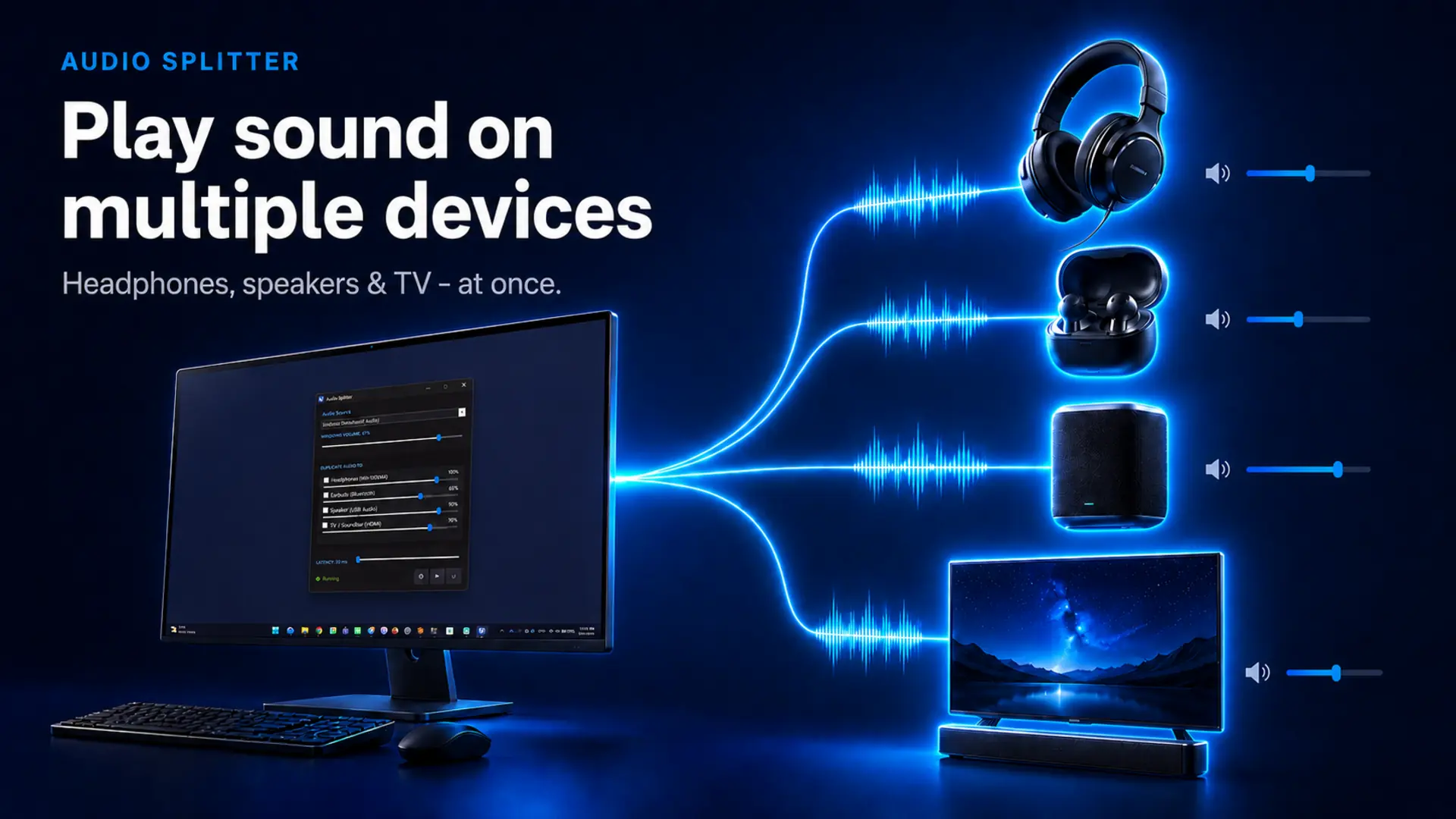
Play the same sound through multiple headphones, speakers, TVs and soundbars, all at the same time. Give every device its own volume.
✓ Free trial · No drivers · No virtual cables
See it in action
Choose the sound already playing on your PC. Tick the devices you want. Audio Splitter handles the rest, without drivers, restarts or virtual cable setup.
Simple by design
Clear controls, no audio-engineering vocabulary and no hidden routing maze.
Made for real life
Bluetooth headphones, wired headsets, USB speakers, HDMI TVs and soundbars, all together.
Use the latency control when one device lags behind another.
Two wireless headphones. Different volume levels. Complete silence in the room.
Playing to two Bluetooth devices at once depends on your adapter's bandwidth. Wired + Bluetooth combinations always work, so use the free trial with your own devices before buying.
Choose the right tool
Audio Splitter focuses on one job: playing the same Windows sound through several outputs. Native workarounds take more setup, while VoiceMeeter is built for much broader mixing and routing.
No virtual audio device, no mixer routing and no driver installation.
Stereo Mix and per-app routing can depend on the installed audio driver, require more setup and provide fewer convenient per-device controls.
VoiceMeeter handles microphones, applications, recording and pro-audio workflows through virtual audio I/O.
Read the honest comparisonChoose the simplest tool that covers the job you actually need.
Who made it
Audio Splitter is built and supported by one independent Windows developer. Problem reports sent from the app go directly to the person who writes the code.
System requirements
Questions before installing
Usually, but it depends on the bandwidth and stability of your Bluetooth adapter. Use the free trial with your own devices before buying.
No. It works with audio devices already available to Windows and does not add a virtual audio device.
There is no artificial two-device limit. Select the outputs your PC can handle: two headphones, speakers plus a TV, or a larger mix.
Only if your goal is simple duplication. VoiceMeeter is much broader and better suited to mixing microphones, apps, recording and advanced routing.
Audio Splitter for Windows
Install in seconds. Try it with your own audio devices.
Download fromMicrosoft Store